The short answer
For most Mac apps, uninstalling means moving the app to the Trash. Open Finder → Applications, right-click the app, choose Move to Trash, then empty the Trash when you’re sure. That removes the app. Small support files it created may stay behind; that’s normal, and we explain how to handle them below.
Tip: Select an app in Finder and press ⌘ ⌫ to move it to the Trash without using the mouse.
Method 1: Move the app to Trash
- Quit the app first (App menu → Quit, or ⌘ Q). macOS won’t move an app that’s open.
- Open Finder and choose Go → Applications (or press ⇧ ⌘ A).
- Find the app. Some apps live in a folder such as
AdobeorMicrosoft Office; open the folder to see them. - Right-click the app and choose Move to Trash. Enter your password if macOS asks.
- To free the space, choose Finder → Empty Trash. Until you do, the app still takes up room and can be restored.
Changed your mind?
Open the Trash, right-click the app and choose Put Back. That works until the Trash is emptied.
Method 2: Launchpad
On macOS Sequoia, Launchpad can remove apps you installed from the Mac App Store.
- Open Launchpad from the Dock.
- Press and hold the ⌥ (Option) key, or click and hold any app icon, until the icons start to jiggle.
- Click the × on the app, then Delete to confirm. Apps without an × weren’t installed from the App Store, so use Method 1 for them.
Newer macOS releases changed how the app launcher works. If you don’t see Launchpad, Method 1 works the same way on every version.
Method 3: Use the app’s own uninstaller
Some software installs helper components that the Trash can’t remove properly. Those apps ship an uninstaller, so look for one before dragging anything:
- Adobe apps: uninstall them from the Adobe Creative Cloud desktop app, which also removes Adobe’s helper files.
- Apps installed from a
.pkg: check the app’s folder in Applications, or its original download, for an “Uninstall …” item. - Antivirus, VPN and system tools: these usually install drivers or extensions. Follow the maker’s own removal instructions.
If the maker documents an uninstaller, that’s the supported route. When in doubt, ask their support.
Method 4: Homebrew
If you installed an app with Homebrew, remove it the same way, so Homebrew’s records stay accurate:
brew uninstall --cask app-name
Run brew list --cask to see the names. Many Homebrew apps are symlinks, which is why Uninstallzy deliberately doesn’t list them.
Method 5: Uninstallzy
Uninstallzy lists every app you can remove, with its real size on disk, so you can spot the big ones and remove several in one go. It moves the app to the Trash after a single confirmation. It’s the same result as Method 1, with a proper overview first.
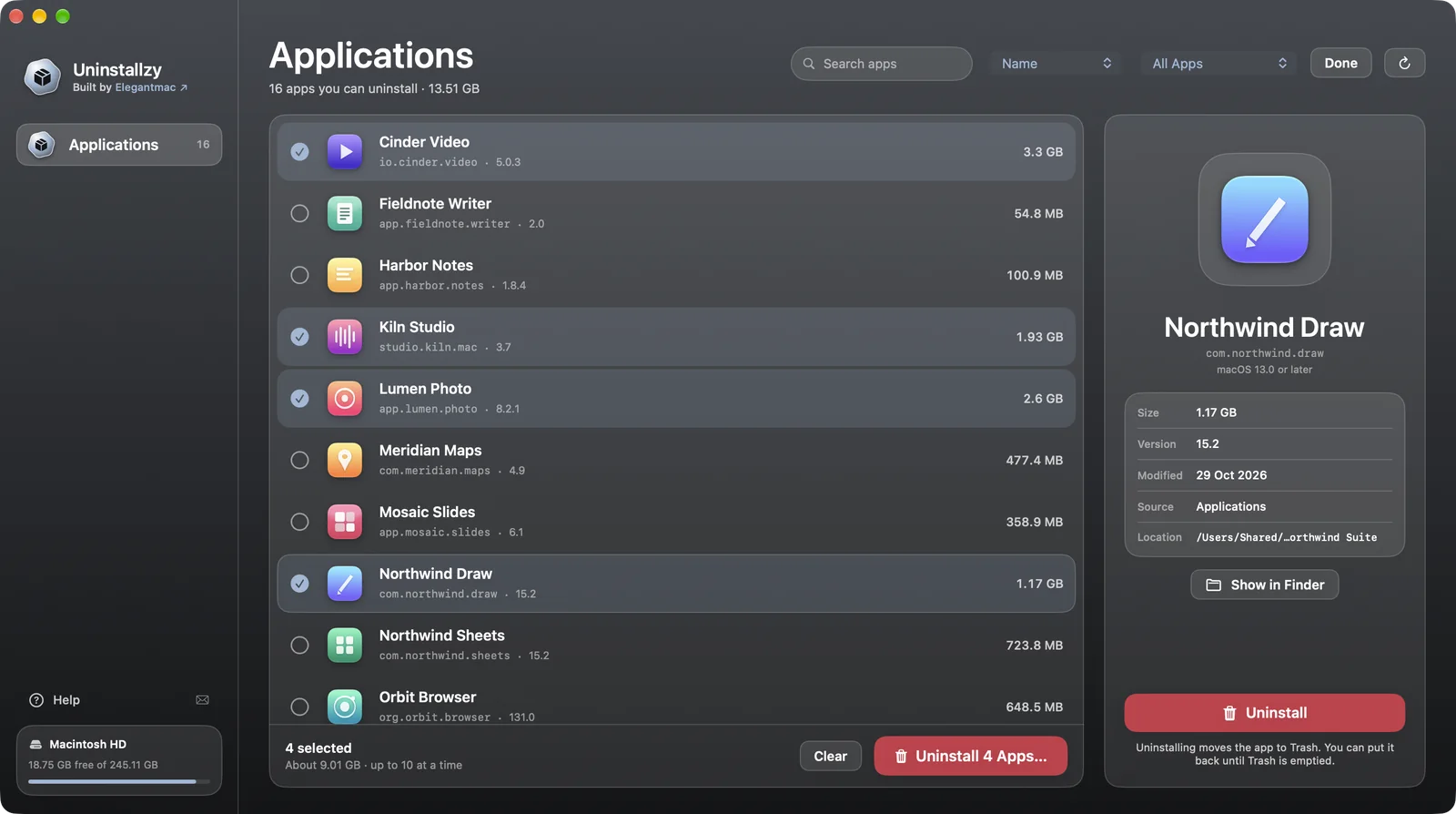
- Sort by size to find the apps worth removing first.
- Search by name, bundle ID or path, and filter to running, App Store or your own apps.
- Asks running apps to quit; never force-quits; never deletes permanently; works offline.

When an app won’t uninstall
“The item is in use” or “can’t be moved because it’s open”
Quit the app. If it won’t respond, press ⌥ ⌘ Esc, select the app and choose Force Quit, then try again. Also check the menu bar for a small icon that belongs to the app and quit it there.
macOS asks for an administrator password
Apps installed for all users are owned by another account. Enter an administrator password when Finder asks. If your account isn’t an administrator, ask the person who manages the Mac.
“Required by macOS” (or no Move to Trash option)
That’s a built-in macOS app such as Safari or Mail. They’re protected and can’t be removed, which is intentional.
“Terminal would like to modify or delete apps” (App Management)
macOS asks before one app changes another. Choose Allow, or go to System Settings → Privacy & Security → App Management and enable the app that is doing the removal.
Avoid Terminal tricks such as sudo rm -rf on an app. A typo can delete the wrong folder permanently, and the Trash can’t save you.
Leftover files: what to know
Apps keep their settings and caches outside the app itself, in your Library folder. After uninstalling, these files usually remain. For most apps they’re tiny and harmless, and keeping them means your settings return if you reinstall.
If you want a clean slate, they’re typically in these places (inside your home folder’s Library):
Application Support/AppName: data and settingsCaches/com.maker.appname: temporary filesPreferences/com.maker.appname.plist: preferencesContainersandGroup Containers: sandboxed app dataLaunchAgents: background helpers an app set up
How to look safely
- In Finder, hold ⌥ and open the Go menu, then choose Library. (Or choose Go → Go to Folder… and enter
~/Library.) - Search for the app’s name or its maker in each folder above.
- Move only items you can clearly tie to the app you removed into the Trash. Don’t empty the Trash straight away, so you can restore something if an app misbehaves.
If you’re unsure what a file is, leave it. Never remove items from /System or from another app’s folders.
Uninstallzy only removes the app itself. After an uninstall it can show, in Finder, the Library folders an app left behind, so you decide what to do with them. It never removes them for you.
FAQ
Does dragging an app to the Trash fully uninstall it?
It removes the app itself. Settings, caches and support files in your Library usually stay behind. They take little space for most apps; remove them manually if you want a clean slate.
Why won’t my Mac let me delete an app?
Usually the app is still running, it needs an administrator password, or it’s a protected macOS app. See When an app won’t delete.
How do I get an uninstalled app back?
If the Trash hasn’t been emptied, right-click the app there and choose Put Back. Otherwise reinstall it from its source or restore from a Time Machine backup.
Is it safe to delete files in the Library folder?
Only remove items you can clearly tie to an app you’ve already uninstalled, and move them to the Trash rather than deleting them permanently.